
How to use the Spoke free delivery planner
The Spoke free delivery planner is a route optimization tool for drivers and small teams who need to quickly organize routes between multiple stops.
It's a web-based tool, so there's no need to download any apps. And no need to create an account either. Add your delivery addresses, optimize your route, send it to your phone, and you're ready to go.
Who is this delivery planner for?
This free route planner app is built for independent delivery drivers and small local courier teams. If you're handling a light or occasional delivery workload, say two or three routes with up to 20 stops each, this tool fits the bill.
For professional courier companies running high-volume operations with multiple drivers, it may not be enough. Those teams have different routing needs and typically require last mile management software that goes beyond route planning.
How it works
Planning your route with the Spoke free route planner takes less than five minutes.
Here's how to do it.
1. Add your start and end location
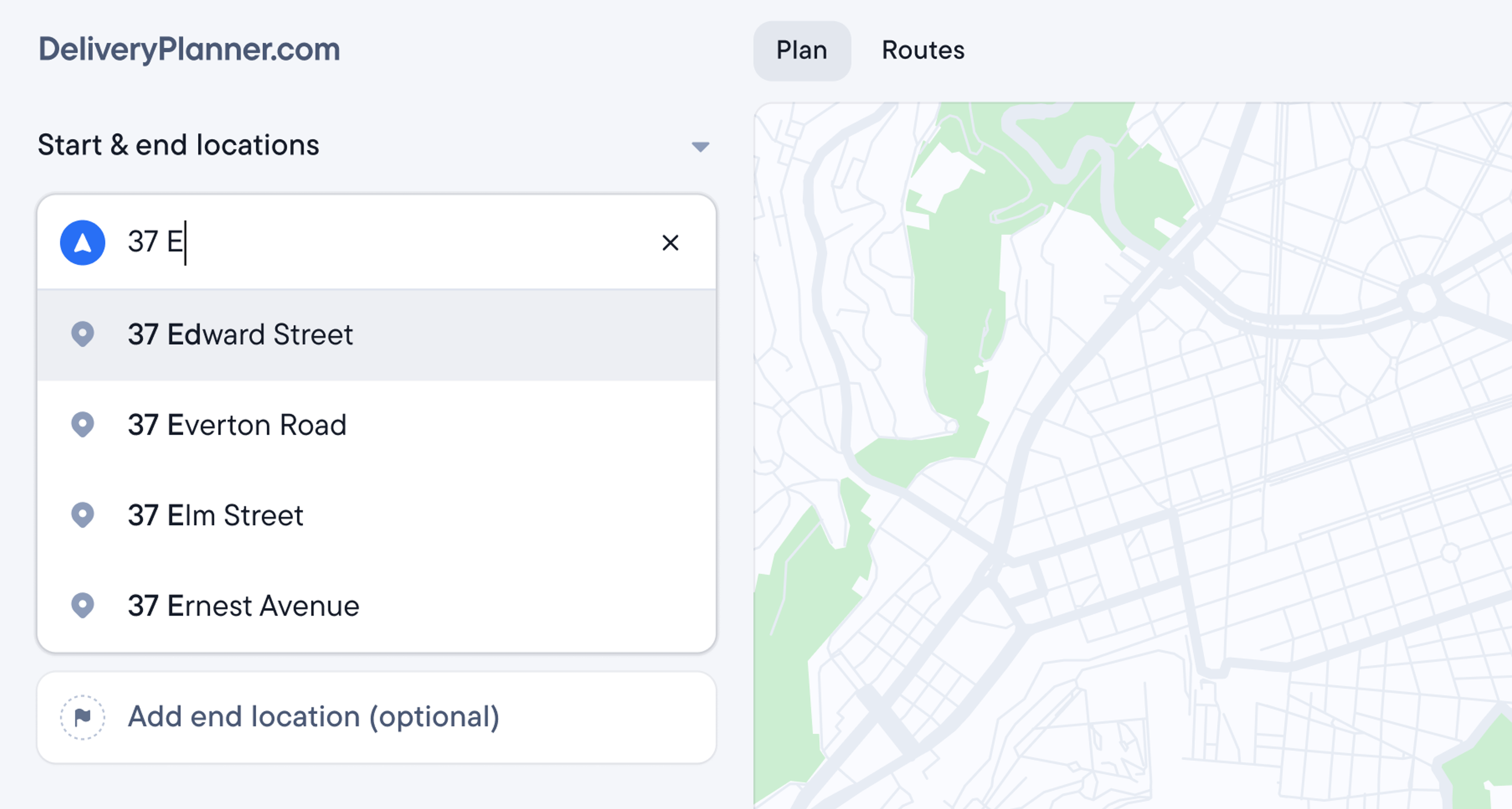
Set your start location by entering the address.
If you're planning a round trip, ending where you began, leave the end location empty and choose ‘Return to start location’. The free delivery planner will bring you back to your start address when it optimizes.
If your route ends elsewhere, add the address manually.
2. Add your delivery stops
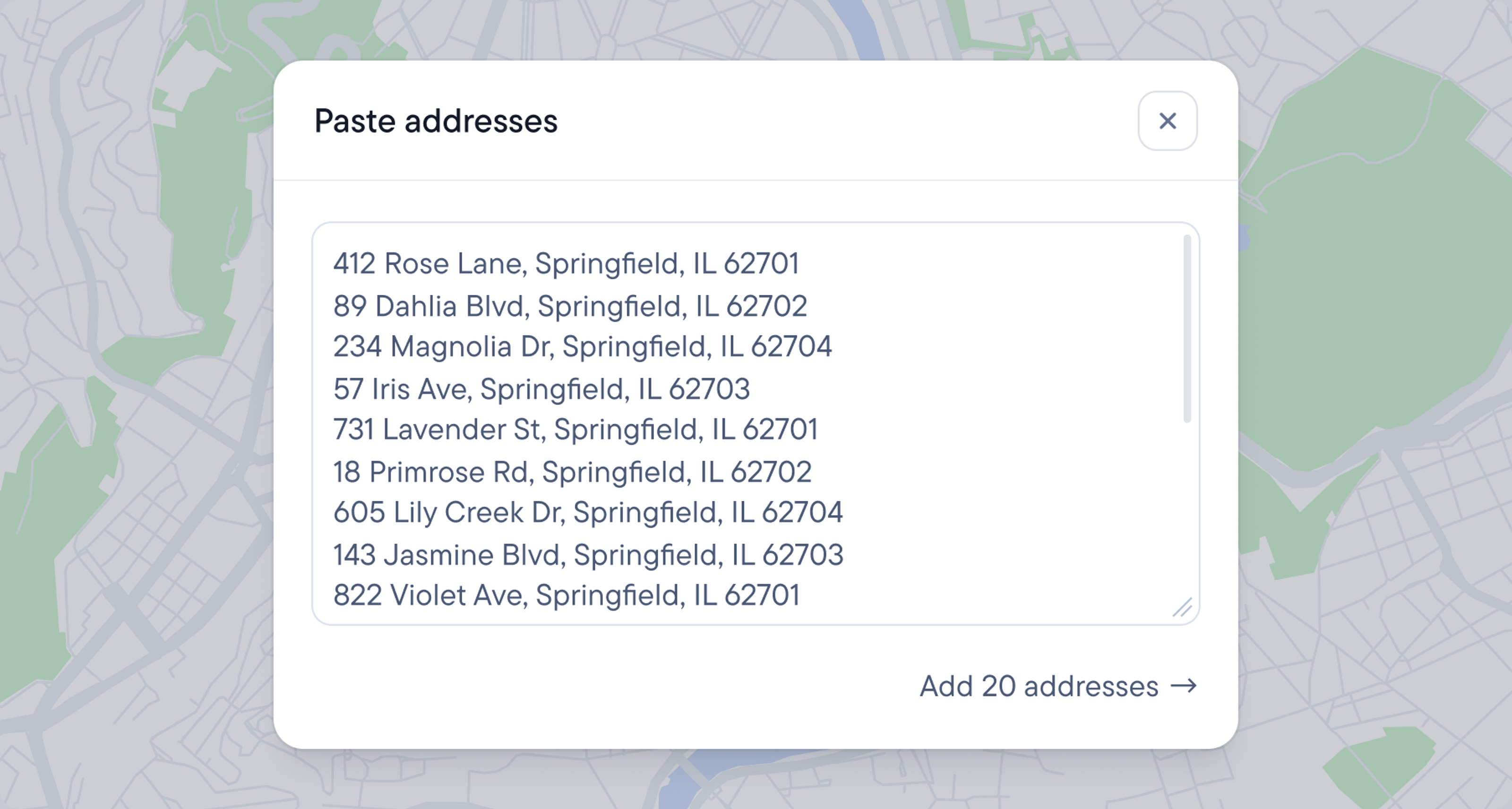
You can add up to 20 stops per route. There are two ways to do this: paste a whole list at once, or type stops one at a time. The order in which you enter stops doesn't matter, since the tool will organize them for you.
Paste addresses
If your addresses are already in a spreadsheet, an email, or a message, copy them and click ‘Paste addresses’. Paste them into the box, one address per line, then click ‘Add stops’.
You can also tell the planner to treat the first address as your start location and the last one as your end. This way, your list becomes a complete route in one step.
Add stops manually
To enter stops by hand, click ‘Type addresses’ instead. Start typing and pick the right match from the list. Our free delivery planner uses Google Maps for address autocomplete, which speeds up entry and prevents errors. Once you confirm a stop, the next field opens ready for the following one.
Anything the planner can't match is flagged in the list, so you can correct it before optimizing.
3. Confirm route and time settings
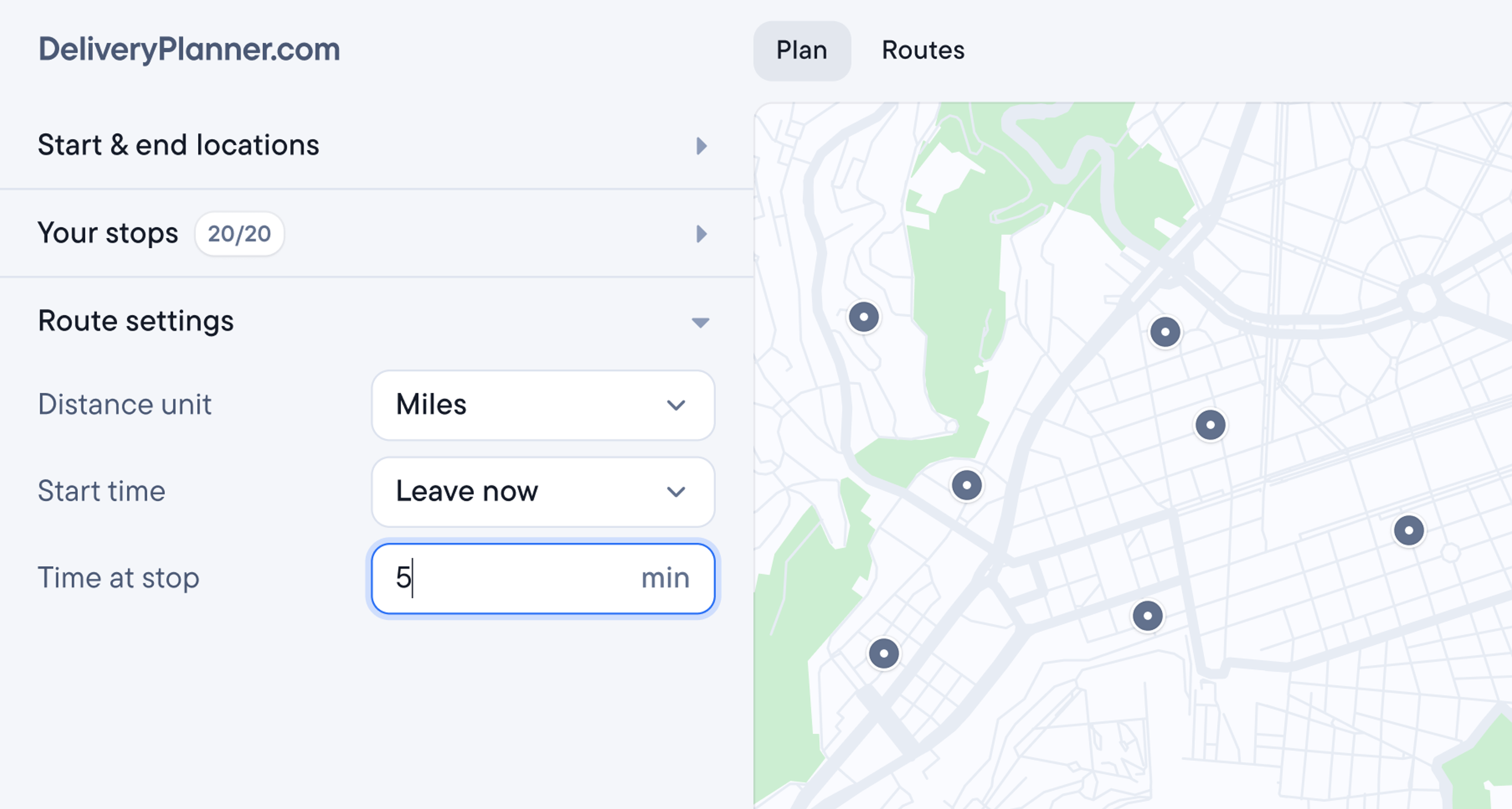
Before you optimize the route for the day, set your unit preferences to kilometers or miles.
You can also set the start time and the duration of a stop. This allows the tool to estimate your ETAs and calculate the overall time needed to complete the deliveries.
These settings are optional. If you don't need the estimates, skip the step.
4. Optimize the route
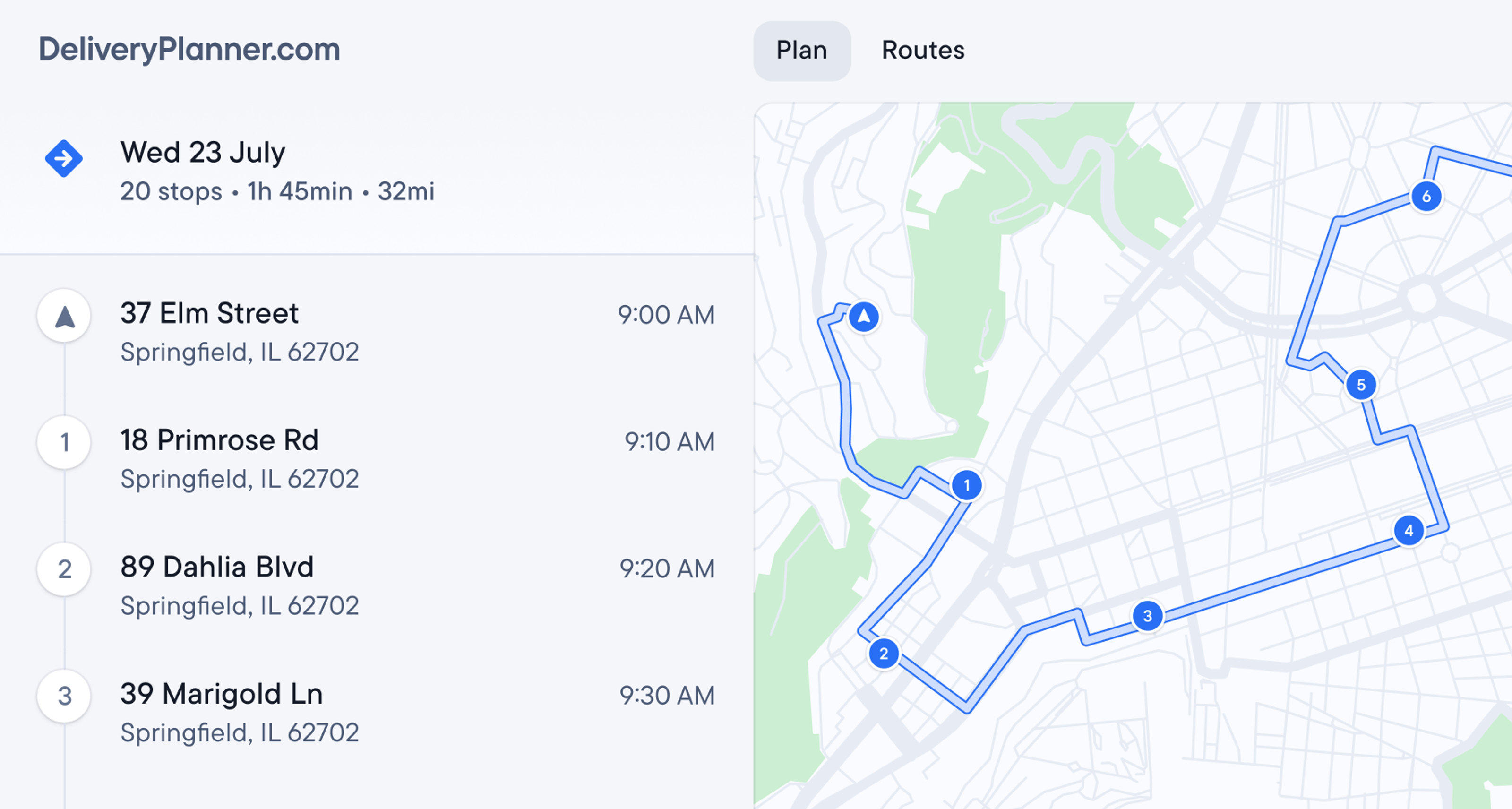
Once you add your stops and set preferences, click ‘Optimize route’.
The route planner will reorder the stops and calculate the most efficient route between them to minimize driving time and fuel costs.
When it's done, you get a clear route line on the map with distinct markers for your start, finish, and each stop.
All the stops are listed in the panel along with ETAs for each one. The tool also calculates the total time and distance.
5. Share or navigate the route
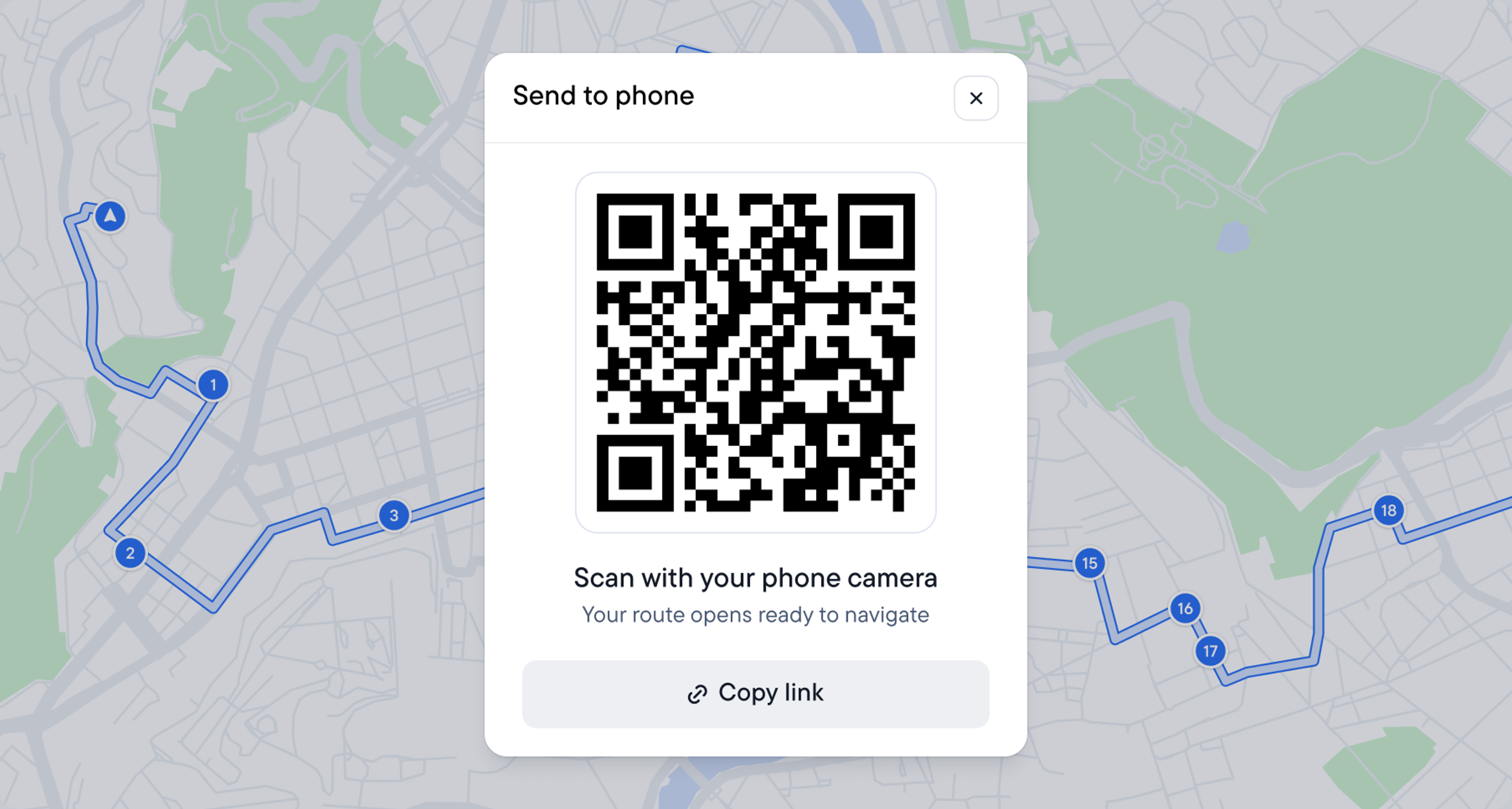
After optimization, send your route to your phone by sharing the link, for example, via WhatsApp or email, or by scanning the QR code. If you planned the route on your phone, tap ‘Start driving’ to open it there instead.
You'll be asked once which mapping app to use – Google Maps, Waze, or Apple Maps – and the planner remembers your choice after that.
The app doesn't provide turn-by-turn directions, but links to individual stops.
When you hit the ‘Navigate’ button, it opens the mapping tool you've chosen. That's where you get your driving directions and real-time traffic updates.
Does this free delivery planner have unlimited stops?
No. The Spoke free route planner allows up to 20 stops per route and 3 optimized routes per day.
The truth is, there are no free route planners with unlimited stops. Some are free, some have a free plan, some offer a free trial, but they always come with a cap, normally around 10 stops. If they let you add more than 20 stops, it's only for a limited period.
Even Google Maps – often mentioned as a free option – limits you to 10 stops per route. And it doesn't optimize the stop order. You have to arrange addresses manually.
If you need more than 20 stops, you'll need to pay for route planning software. That's true across the industry, not just here.
Delivery planner FAQs
An optimized route is fixed once it's made. To make changes, open the route actions menu and choose ‘Duplicate to a new plan’. This copies every stop into a new plan you can add to, remove from, and re-optimize. Optimizing the new plan counts towards your daily limit.
Yes, the Spoke free route planner saves your route automatically. If you close the browser and return within 24 hours, your optimized route will still be there, ready for you to jump back in.
Click ‘Routes’ in the navigation to see everything you've planned in the last 24 hours, and pick the one you need.
Yes. Pasting a list of addresses works the same on a phone as it does on a desktop, so a full route takes about as long either way. Typing stops one at a time is still easier on a larger screen. You can also send routes straight to your phone for navigation.